Volutions - ID | News | Gadget | Tutorial | Freeware | Template | Etc.: eyecandy
Showing posts with label eyecandy. Show all posts

ThemeSelector: GNOME Shell Extension To Change Themes (With Previews)

GNOME 3 (with GNOME Shell) is truly great and I especially like how easy it is to extend it through extensions like the new ThemeSelector extension.

ThemeSelector GNOME Shell extension is a new, unofficial GNOME Shell extension that adds a new tab in the Activities overview where all the GNOME Shell themes (not GTK themes!) installed under ~/.local/share/gnome-shell/themes show up. To change a theme, all you have to do is click it and you don't even have to reload GNOME Shell.


Here's a screenshot with the new ThemeSelector extension:

GNOME Shell Themeselector extension


The theme previews aren't exactly great, probably because of my large screen too, but the ThemeSelector GNOME Shell extension is still in beta.


To use the ThemeSelector extension, you need to install GNOME Shell Extensions and the GNOME Shell User Theme extension. But don't worry, despite a first look on the installation steps below, installing all of these is actually quite easy. Read on!


Install GNOME Shell Extensions and the User Theme extension in Ubuntu / Fedora


If you've compiled GNOME Shell using JHBuild (tested in Ubuntu):

cd ~/gnome-shell/source
git clone http://git.gnome.org/browse/gnome-shell-extensions
cd gnome-shell-extensions
./autogen.sh --prefix $HOME/gnome-shell/install/ --enable-extensions=user-theme
make && make install


If you use Fedora, you can probably find Gnome Shell Extensions and the User Theme extension in the repositories. If not, download the .rpm files from here (I'm new to Fedora so I'm unsure how the repositories work ... for now :D) : GNOME Shell Extensions Common and GNOME Shell Extension User Theme


If you've installed GNOME Shell from the GNOME 3 PPA in Ubuntu 11.04 (not tested):

A. Compile Gnome Shell Extensions:
cd
git clone http://git.gnome.org/browse/gnome-shell-extensions
cd gnome-shell-extensions
./autogen.sh --prefix=/usr --enable-extensions=user-theme
make && sudo make install

B. Convert Fedora .rpm to .deb (again not tested - thanks to ycDref for the tip!).

This is an option for those who can't get GNOME Shell extensions to compile for some reason. Using alien is not recommended.


Download the .rpms from here: GNOME Shell Extensions Common and GNOME Shell Extension User Theme

Install alien:
sudo apt-get install alien

Then convert all downloaded .rpm files to .deb:
sudo alien -d --scripts *.rpm

And install the resulting .deb files (you can also directly install them using "-i" instead of "-d").


Install the Themeselector GNOME Shell extension


The ThemeSelector extension already comes with 5 great GNOME Shell themes by half-left: Atolm, Smooth Inset, Elementaty, Dark Glass and Deviant Art GNOME Shell themes. Here's how to install it.


Download the Themeselector Gnome Shell extension, extract it and place "extension.js" and metadata.json under the /.local/share/gnome-shell/themeselector@fpmurphy.com/ folder (if it doesn't exist, create it). Then copy all the folders you've extracted to the ~/.themes/ folder (it's a hidden folder in your home directory; if some of those folders exists, merge the data).

Now restart GNOME Shell and you should have a new Themes tab in the Activities overview.


Post updated with a newer ThemeSelector version (0.9) - instructions for extracting the ThemeSelector changed!
GNOME Shell Themeselector info and the extension itself - thanks to blog.fpmurphy.com; Many thanks to Charles Bowman for the tip!

ThemeSelector: GNOME Shell Extension To Change Themes (With Previews)

GNOME 3 (with GNOME Shell) is truly great and I especially like how easy it is to extend it through extensions like the new ThemeSelector extension.

ThemeSelector GNOME Shell extension is a new, unofficial GNOME Shell extension that adds a new tab in the Activities overview where all the GNOME Shell themes (not GTK themes!) installed under ~/.local/share/gnome-shell/themes show up. To change a theme, all you have to do is click it and you don't even have to reload GNOME Shell.


Here's a screenshot with the new ThemeSelector extension:

GNOME Shell Themeselector extension


The theme previews aren't exactly great, probably because of my large screen too, but the ThemeSelector GNOME Shell extension is still in beta.


To use the ThemeSelector extension, you need to install GNOME Shell Extensions and the GNOME Shell User Theme extension. But don't worry, despite a first look on the installation steps below, installing all of these is actually quite easy. Read on!


Install GNOME Shell Extensions and the User Theme extension in Ubuntu / Fedora


If you've compiled GNOME Shell using JHBuild (tested in Ubuntu):

cd ~/gnome-shell/source
git clone http://git.gnome.org/browse/gnome-shell-extensions
cd gnome-shell-extensions
./autogen.sh --prefix $HOME/gnome-shell/install/ --enable-extensions=user-theme
make && make install


If you use Fedora, you can probably find Gnome Shell Extensions and the User Theme extension in the repositories. If not, download the .rpm files from here (I'm new to Fedora so I'm unsure how the repositories work ... for now :D) : GNOME Shell Extensions Common and GNOME Shell Extension User Theme


If you've installed GNOME Shell from the GNOME 3 PPA in Ubuntu 11.04 (not tested):

A. Compile Gnome Shell Extensions:
cd
git clone http://git.gnome.org/browse/gnome-shell-extensions
cd gnome-shell-extensions
./autogen.sh --prefix=/usr --enable-extensions=user-theme
make && sudo make install

B. Convert Fedora .rpm to .deb (again not tested - thanks to ycDref for the tip!).

This is an option for those who can't get GNOME Shell extensions to compile for some reason. Using alien is not recommended.


Download the .rpms from here: GNOME Shell Extensions Common and GNOME Shell Extension User Theme

Install alien:
sudo apt-get install alien

Then convert all downloaded .rpm files to .deb:
sudo alien -d --scripts *.rpm

And install the resulting .deb files (you can also directly install them using "-i" instead of "-d").


Install the Themeselector GNOME Shell extension


The ThemeSelector extension already comes with 5 great GNOME Shell themes by half-left: Atolm, Smooth Inset, Elementaty, Dark Glass and Deviant Art GNOME Shell themes. Here's how to install it.


Download the Themeselector Gnome Shell extension, extract it and place "extension.js" and metadata.json under the /.local/share/gnome-shell/themeselector@fpmurphy.com/ folder (if it doesn't exist, create it). Then copy all the folders you've extracted to the ~/.themes/ folder (it's a hidden folder in your home directory; if some of those folders exists, merge the data).

Now restart GNOME Shell and you should have a new Themes tab in the Activities overview.


Post updated with a newer ThemeSelector version (0.9) - instructions for extracting the ThemeSelector changed!
GNOME Shell Themeselector info and the extension itself - thanks to blog.fpmurphy.com; Many thanks to Charles Bowman for the tip!

Adwaita Improved: Reduced Padding For Adwaita Combo Boxes / Nautilus Breadcrumbs [GNOME 3]

Adwaita improved


If you think the new GNOME3 default theme - Adwaita - uses too much padding, try "Adwaita Improved" by yes, Half-left again :)


Adwaita Improved comes with reduced padding for combo boxes and Nautilus breadcrumbs bar as well as a tweak to the Nautilus sidebar to blend with the background color. Check out these before and after images by Half-left:

Adwaita improved


To use the Adwaita Improved theme:
  • extract the downloaded .zip and then move the "Adwaita" folder to the ~/.themes directory (if it doesn't exist, create it).
  • press ALT + F2 and type "r" to reload GNOME Shell


Download Adwaita Improved @ DeviantArt

Adwaita Improved: Reduced Padding For Adwaita Combo Boxes / Nautilus Breadcrumbs [GNOME 3]

Adwaita improved


If you think the new GNOME3 default theme - Adwaita - uses too much padding, try "Adwaita Improved" by yes, Half-left again :)


Adwaita Improved comes with reduced padding for combo boxes and Nautilus breadcrumbs bar as well as a tweak to the Nautilus sidebar to blend with the background color. Check out these before and after images by Half-left:

Adwaita improved


To use the Adwaita Improved theme:
  • extract the downloaded .zip and then move the "Adwaita" folder to the ~/.themes directory (if it doesn't exist, create it).
  • press ALT + F2 and type "r" to reload GNOME Shell


Download Adwaita Improved @ DeviantArt

Install GNOME 3 (GNOME Shell Or Classic) GTK / Mutter / Metacity Themes

In the latest GNOME 3, changing the theme isn't as easy as you're used to. Using Gnome Tweak Tool you can change the GTK theme but how about the titlebar (Mutter/Metacity theme)? Read on!


How to install GNOME3 GTK themes


To change the GTK theme in GNOME 3 (with or without GNOME Shell), you can use Gnome Tweak Tool which is available in the GNOME 3 Ubuntu PPA, Fedora 15 official repositories, etc. If you're using Ubuntu 11.04 and the GNOME 3 PPA, run the following command to install it:
sudo apt-get install gnome-tweak-tool


To be able to use a GTK theme, make sure it's installed in /usr/share/themes/ and not in ~/.themes/ as Gnome Tweak Tool doesn't display the themes found in ~/.themes.

Then, to change the GNOME3 GTK theme, open Gnome Tweak tool and select the theme you want to use on the "Interface tab":

Gnome Tweak Tool

On the same tab in Gnome Tweak Tool you can also change the icon theme. But please note that the top panel icons in GNOME Shell will not change when chaging the icon theme (however, if you're using the classic GNONE 3 panels, the icons will change everywhere).


How to install Mutter (titlebar) GNOME Shell theme


To be able to change the GNOME 3 Mutter theme (I hope that's how it's called now) - that's the titlebar theme in GNOME Shell -, you need to install the theme under the ~/.themes folder. Yes it's weird, but that's how it works right now, hopefully this will change in future GNOME 3 releases.


Then, to change the GNOME Shell titlebar theme you need to edit some gconf settings so press ALT + F2 and enter: "gconf-editor" (if not installed, search for gconf-editor in your Linux distribution repositories) and navigate to desktop > shell > windows and change the "theme" value with the name of the theme you want to use:

Gconf editor gnome shell


The changes don't take effect immediately so you'll have to logout for the changes to take effect, or press ALT + F2 and enter: "r".

Important: for the "theme" value, enter the folder name of the theme you've copied to your ~/.themes folder. So if you've installed the Elementary theme under ~/.themes/egtk folder, use "egtk" for the "themes" key value.


How to change The Metacity theme in GNOME 3 (classic)


If you use the classic GNOME3 desktop, changing the titlebar (Metacity) theme is different then changing it for GNOME Shell. First of all, you don't have to copy the theme under ~/.themes/, it will work with /usr/share/themes/ too.

To change the Metacity theme in the GNOME 3 classic desktop (with GNOME panels), press ALT + F2, enter "gconf-editor", navigate to apps > metacity > general and change the "theme" value to the name of the theme you want to use:

Metacity theme change


Update: for switching GNOME Shell themes easily (not GTK themes - GNOME Shell themes are different), see: ThemeSelector: GNOME Shell Extension To Change Themes (With Previews)


The instructions in this post were tested on Fedora 15 beta (with GNOME Shell), GNOME Shell built using jhbuild in Ubuntu 11.04 and the classic GNOME3 session in VirtualBox.

Install GNOME 3 (GNOME Shell Or Classic) GTK / Mutter / Metacity Themes

In the latest GNOME 3, changing the theme isn't as easy as you're used to. Using Gnome Tweak Tool you can change the GTK theme but how about the titlebar (Mutter/Metacity theme)? Read on!


How to install GNOME3 GTK themes


To change the GTK theme in GNOME 3 (with or without GNOME Shell), you can use Gnome Tweak Tool which is available in the GNOME 3 Ubuntu PPA, Fedora 15 official repositories, etc. If you're using Ubuntu 11.04 and the GNOME 3 PPA, run the following command to install it:
sudo apt-get install gnome-tweak-tool


To be able to use a GTK theme, make sure it's installed in /usr/share/themes/ and not in ~/.themes/ as Gnome Tweak Tool doesn't display the themes found in ~/.themes.

Then, to change the GNOME3 GTK theme, open Gnome Tweak tool and select the theme you want to use on the "Interface tab":

Gnome Tweak Tool

On the same tab in Gnome Tweak Tool you can also change the icon theme. But please note that the top panel icons in GNOME Shell will not change when chaging the icon theme (however, if you're using the classic GNONE 3 panels, the icons will change everywhere).


How to install Mutter (titlebar) GNOME Shell theme


To be able to change the GNOME 3 Mutter theme (I hope that's how it's called now) - that's the titlebar theme in GNOME Shell -, you need to install the theme under the ~/.themes folder. Yes it's weird, but that's how it works right now, hopefully this will change in future GNOME 3 releases.


Then, to change the GNOME Shell titlebar theme you need to edit some gconf settings so press ALT + F2 and enter: "gconf-editor" (if not installed, search for gconf-editor in your Linux distribution repositories) and navigate to desktop > shell > windows and change the "theme" value with the name of the theme you want to use:

Gconf editor gnome shell


The changes don't take effect immediately so you'll have to logout for the changes to take effect, or press ALT + F2 and enter: "r".

Important: for the "theme" value, enter the folder name of the theme you've copied to your ~/.themes folder. So if you've installed the Elementary theme under ~/.themes/egtk folder, use "egtk" for the "themes" key value.


How to change The Metacity theme in GNOME 3 (classic)


If you use the classic GNOME3 desktop, changing the titlebar (Metacity) theme is different then changing it for GNOME Shell. First of all, you don't have to copy the theme under ~/.themes/, it will work with /usr/share/themes/ too.

To change the Metacity theme in the GNOME 3 classic desktop (with GNOME panels), press ALT + F2, enter "gconf-editor", navigate to apps > metacity > general and change the "theme" value to the name of the theme you want to use:

Metacity theme change


Update: for switching GNOME Shell themes easily (not GTK themes - GNOME Shell themes are different), see: ThemeSelector: GNOME Shell Extension To Change Themes (With Previews)


The instructions in this post were tested on Fedora 15 beta (with GNOME Shell), GNOME Shell built using jhbuild in Ubuntu 11.04 and the classic GNOME3 session in VirtualBox.

GNOME Shell Atolm - Another Beautiful GNOME Shell Theme By Half-left

Half-left (who has created the amazing Smooth Inset Gnome Shell theme) has created yet another beautiful theme for Gnome Shell called Atolm (based on Atolm by SkiesOfAzel).

Check it out - firstly some screenshots from my computer:

GNome shell atolm

Gnome Shell Atolm

Gnome Shell Atolm


And a screenshot by Half-left:

Atolm Gnome Shell


Remember, Gnome Shell themes are not regular GTK themes - they only theme the top panel, the GNOME Shell "dock", ALT+TAB / ALT+F2 dialogs and so on, but not the application windows.


Install Atolm for Gnome Shell


GNOME Shell - Atolm is compatible with GNOME Shell beta, RC and 3.0 stable.

To install it, you must overwrite the GNOME Shell "themes" folder (I for one couldn't get the GNOME Shell themes extension to work). So extract the downloaded archive and depending on where you've installed GNOME Shell, replace the "themes" folder (make a backup first to be able to restore the original theme!) under:
  • if you've installed GNOME Shell from a PPA / use a Linux distribution that ships with GNOME Shell: /usr/share/gnome-shell/
  • if you've compiled GNOME Shell using jhbuild: ~/gnome-shell/source/gnome-shell/data

Then press ALT + F2 and enter "rt" (without the quotes) and press enter to reload the GNOME shell theme (or enter "r" to reload the whole GNOME Shell).


Download GNOME Shell - Atolm

Faenza Icon Theme Updated With New LibreOffice, UbuntuOne Icons

Faenza Icon Theme

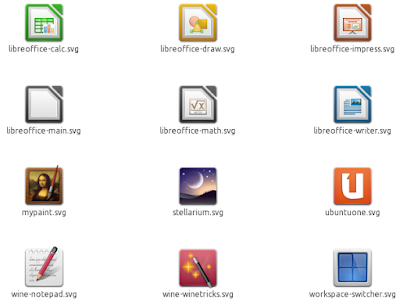
Faenza Icon Theme 0.9.2 has been released with new icons for LibreOffice, UbuntuOne - which now matches the new logo, a new workspace switcher icon and more.

With these, Faenza is almost ready for Unity (some icons are still missing though, like the Applications / Files & Folder Unity Places):

Faenza Ubuntu 11.04 Unity


Faenza 0.9.2 changelog:
  • New logos: Gentoo, Slackware
  • New actions: folder-move, folder-copy
  • New apps: libreoffice, workspace-switcher, wine notepad, winetricks, stellarium, mypaint
  • w mimetypes: application-pgp-keys, encrypted
  • New status icons: gsm 3G network, wireless secure network, bluetooth paired, weather icons in 24x24
  • Color or opacity changes for some status icons
  • A new design for Ubuntu One
  • A few new 16x16 applications icons


Install Faenza Icon theme in Ubuntu using the commands below:
sudo add-apt-repository ppa:tiheum/equinox
sudo apt-get update
sudo apt-get install faenza-icon-theme

Note: the versions in the PPA are a bit weird: the latest Faenza 0.9.2 has version "0.9-ubuntu3" but that's the latest version nevertheless.

If you don't use Ubuntu, get the latest Faenza Icon Theme 0.9.2 via Gnome Look.

3 New Equinox Themes Released: Equinox Evolution Dawn, Dusk and Midnight

The Equinox GTK themes is a pack of (now) 5 beautiful themes created by Tiheum (who's also the Faenza icons author). Check out our previous posts about the Equinox GTK themes: here and here.

An update to the Equinox PPA brings 3 new great looking themes: Equinox Evolution Dawn, Dusk and Midnight (which complete the Equinox Evolution series along with the regular Equinox Evolution and Equinox Evolution Light) as well as an updated Equinox GTK engine. The Equinox Evolution Midnight theme is experimental because "Gnome doesn't support dark themes well" says Tiheum.

Each GTK theme comes with a Metacity theme with either rounded or squared buttons.

The new Equinox Evolution themes:

Equinox Evolution Dawn
(Equinox Evolution Dawn)

Equinox Evolution Dusk
(Equinox Evolution Dusk)

Equinox Evolution Midnight
(Equinox Evolution Midnight)


Here are two more screenshots taken by Tiheum:

Equinox Evolution Dawn
(Equinox Evolution Dawn)

Equinox Evolution Dusk
(Equinox Evolution Dusk)

The themes support Nautilus Elementary breadcrumbs too, but not by default. If you want to enable the breadcrumbs for these themes, you'll have to edit the "gtkrc" file (in each Equinox Evolution theme folder the gtk-2.0 directory; you can find the themes in /usr/share/themes) and uncomment the following line (remove the "#" in front of it):
#include "apps/nautilus-elementary.rc"

If you don't want to do this manually, see the commands at the end of the post.


Install The Equinox Themes in Ubuntu


Add the Equinox PPA and install the latest Equinox Evolution Themes using the following commands:

sudo add-apt-repository ppa:tiheum/equinox
sudo apt-get update
sudo apt-get install gtk2-engines-equinox equinox-theme

To also install the Equinox Ubuntu themes, use the following command:
sudo apt-get install equinox-ubuntu-theme

The themes can also be downloaded via Gnome Look: Equinox Evolution themes | Equinox Original themes (but these are no longer maintained)


How to enable Nautilus Elementary breadcrumbs for the Equinox Evolution themes


Like I've told you above, to enable Nautilus Elementary breadcrumbs (and other Nautilus Elementary tweaks) for the Equinox Evolution themes, you need to edit the "gtkrc" file inside the "/usr/share/themes/THEME NAME/gtk-2.0" folder, where "THEME NAME" is each Equinox Evolution theme folder.

To make it easy, I've set up a command for each of the Equinox Evolution theme you can use to enable Nautilus Elementary breadcrumbs (including for Equinox Evolution and Equinox Evolution Light) - only use this if you have installed Nautilus Elementary and have enabled the breadcrumbs in the options (Edit > Preferences, on the "Tweaks" tab, check the "Show like breadcrumbs" box):
sudo sed -i 's/\#include\ \"apps\/nautilus\-elementary\.rc\"/include\ \"apps\/nautilus\-elementary\.rc\"/g' '/usr/share/themes/Equinox Evolution/gtk-2.0/gtkrc'
sudo sed -i 's/\#include\ \"apps\/nautilus\-elementary\.rc\"/include\ \"apps\/nautilus\-elementary\.rc\"/g' '/usr/share/themes/Equinox Evolution Dawn/gtk-2.0/gtkrc'
sudo sed -i 's/\#include\ \"apps\/nautilus\-elementary\.rc\"/include\ \"apps\/nautilus\-elementary\.rc\"/g' '/usr/share/themes/Equinox Evolution Dusk/gtk-2.0/gtkrc'
sudo sed -i 's/\#include\ \"apps\/nautilus\-elementary\.rc\"/include\ \"apps\/nautilus\-elementary\.rc\"/g' '/usr/share/themes/Equinox Evolution Light/gtk-2.0/gtkrc'
sudo sed -i 's/\#include\ \"apps\/nautilus\-elementary\.rc\"/include\ \"apps\/nautilus\-elementary\.rc\"/g' '/usr/share/themes/Equinox Evolution Midnight/gtk-2.0/gtkrc'

Faenza 0.9.1 Released With Yet Another "Darker" Theme, Bug Fixes

Faenza

A new Faenza Icon theme version has just been released: 0.9.1. This is just a minor bug-fix release, but it does bring a new variant called "Faenza-Darker" which is great for dark themes (dark buttons / Gnome Panel) with a light toolbar.

That's pretty nice because now you don't have to manually tweak the default Faenza Icon theme or use unofficial variants if you just want to use the original Faenza but with various light/dark icon combinations.

Faenza-Darker is the third official "dark" Faenza, along with "Faenza-Dark" and "Faenza-Darkest". To understand the differences between them, take a look at the screenshots below (read the description in Gedit too):

Faenza Dark
(Faenza-Dark)

Faenza Darker
(Faenza-Darker)

Faenza Darkest
(Faenza Darkest)


Install the latest Faenza Icon Theme 0.9.1 (the PPA version says "0.9-ubuntu2" but that's 0.9.1) in Ubuntu using the following commands:
sudo add-apt-repository ppa:tiheum/equinox
sudo apt-get update
sudo apt-get install faenza-icon-theme

If you're not using Ubuntu, you can download Faenza via Gnome Look.

3 New Themes In The WebUpd8 Themes PPA: GAIA Sprout, Soothe And Dichotomy

To be able to install the themes below (well, you can also manually download and install them if you want), firstly add the WebUpd8 Themes PPA:

sudo add-apt-repository ppa:webupd8team/themes && sudo apt-get update

(Even if you've already added our Themes PPA, make sure you run "sudo apt-get update" so you get the latest packages as I've just uploaded these themes).


GAIA Sprout


Gaia Sprout:

GAIA Sprout
More screenshots on DeviantArt


This is a pack of two amazing Emerald themes which can be used with any GTK theme you want, but there's also a very simple GTK theme to go with the Emerald themes. Even though you can't see the titlebar, you can still drag the area where it used to be to move the window. Also, the minimize and maximize buttons are still there, but are only slightly visible when you move the mose over the area where they should be.

Install Gaia Sprout Emerald themes:
sudo apt-get install gaia-sprout-emerald-decorators

Install Gaia Sprout GTK theme:
sudo apt-get install gaia-sprout-gtk-theme

Important: the GTK theme will not show up as a regular theme as it doesn't have a Metacity theme. To apply it, go to System > Preferences > Appearence, on the "Themes" tab and select "Customize", then select "GAIA Sprout" under "Controls".


For how to use the Emerald themes, see the end of the post.


Soothe


Soothe:

Soothe
More screenshots on Deviantart

The pack comes with a GTK+Metacity theme as well as two Emerald themes. While Soothe is comes with a Metacity theme, I for one prefer using it with the Soothe SmoothGlass Emerald theme (like in the screenshot above). Just like with GAIA Sprout, the Soothe Emerald (Soothe SmoothGlass) can still be used to move the window but you just can't see it. Also, the minimize, maximize and close buttons are still there, but are only slightly visible when you move the mose over the area where they should be.

Install Soothe GTK theme:
sudo apt-get install soothe-gtk-theme

Install Soothe Emerald themes:
sudo apt-get install soothe-emerald-decorators


Dichotomy


Dichotomy:

Dichotomy
More screenshots on the Ubuntu wiki.


Dichotomy is quite an old theme - it was one of the themes proposed for Ubuntu 10.04 Lucid Lynx and I for one really like the way the menu looks so I decided to make it available via the WebUpd8 themes PPA.

Install it using the following commands:
sudo apt-get install dichotomy-gtk-theme


How to use Soother / GAIA Sprout (Gnome Panel / Emerald)


Booth Soothe and GAIA Sprout come with some custom Gnome Panel backgrounds you need to edit in GIMP. These can be downloaded via DevianArt (you'll have to download the whole theme) and there you'll also find exact instructions for setting up the custom Gnome Panel: GAIA Sprout | Soothe. If you think that's too hard (it's not!), you can use some already made regular Gnome panel backgrounds or tweak the font color using Gnome Color Chooser.


If you don't know how to use the Emerald themes (this includes applying a theme and using Emerald permanently or switching back to Metacity), we have a really really old post for that so check it out: How To Install Themes / Emerald (just skip to the Emerald part).

Want to move the Emerald decorator buttons to the left? We have a how-to for that too: Emerald: Move Minimize, Maximize And Close Buttons To The Left - but that won't look ok with GAIA Sprout (but should be ok with GAIA Sprout 2 Emerald theme which is also included in the package).

Bluebird Chrome / Firefox 4 Themes

If you like Bluebird, you may also want a Chrome / Firefox theme to match. Below you'll find a theme that matches Chrome perfectly and a Firefox 4 theme which isn't a perfect match for Bluebird but looks great nevertheless. The Firefox 4 theme actually integrates quite well with other themes too.


Chrome / Chromium


For Chrome there's a theme that matches Blubird perfectly . However, to get the full experience, you may want to check the "Use system title bar and borders" option in Chrome settings ("Personal Stuff") tab.

Here's how it looks like:

Bluebird Chrome


DOWNLOAD Bluebird for Chrome


Firefox 4


Bluebird already looks great with Firefox 4 but you can use a theme called "QSQ" to get nicer buttons and a "more integrated" overall look - even though it doesn't matches the Bluebird colors perfectly.

Here's how it looks:

Bluebird Firefox


Download QSQ for Firefox 4.


If you want to be able to move the Firefox 4 menu (button) to the right but have a blue icon like in QSQ and not orange, install the Movable Firefox Button extension, move the menu button then disable the Movable Firefox Button extension.


Ubuntu 11.04 Community Wallpapers Revealed, Default Wallpaper Slightly Modified [Download]

The "ubuntu-wallpapers" package has just been updated in Ubuntu 11.04 Natty Narwhal and it now includes wallpapers from the Ubuntu 11.04 community contest:

Ubuntu 11.04 community wallpapers

wallpapers

Ubuntu 11.04 community wallpapers

Ubuntu 11.04 Natty Narwhal community wallpapers

Ubuntu 11.04 community wallpapers

Ubuntu 11.04 community wallpapers

Ubuntu 11.04 community wallpapers

Ubuntu 11.04 community wallpapers

Ubuntu 11.04 community wallpapers

Ubuntu 11.04 community wallpapers

Ubuntu 11.04 community wallpapers

Ubuntu 11.04 community wallpapers

Ubuntu 11.04 community wallpapers

Ubuntu 11.04 community wallpapers

Ubuntu 11.04 community wallpapers

Ubuntu 11.04 community wallpapers


These seem like the best community wallpapers so far and I'm really glad they've finally decided to include some non-photos as wallpapers (we've had enough flowers in 10.10).


The default Ubuntu 11.04 wallpaper has been slightly modified:

I have made subtle changes and introduced new light refractions. We can continue to add light streams and re-balance with each release - the landscape becomes gently lighter and brighter and gains in complexity to reflect our drive towards 12.04 :)

IMHO as we move towards becoming more of a 'household' platform and with the great changes coming with Unity (launcher/dash) general users will get reassurance from the familiarity of the wallpaper and will also identify with it as part of our personality in new screenshots.

-via LP

Ubuntu 11.04 default wallpaper


Download all the Ubuntu 11.04 community wallpapers from HERE (I didn't link to the .deb because it would replace your current community wallpapers package).

Install The Beautiful Bluebird GTK + Metacity Theme In Ubuntu

Bluebird theme

After many comments about it, I've decided to make a separate post as it seems everybody wants to know what theme this is even though there was an announcement on ppa.webupd8.org.

The theme in the above screenshot is Bluebird GTK (the default Xubuntu 10.10 theme) and a new Bluebird Metacity theme - I've combined these two and created one package which you can use in Ubuntu (Gnome) by adding the WebUpd8 themes PPA.

I've also fixed a small bug in the GTK theme which made the Nautilus Elementary zoom slider to look broken.

Install Bluebird GTK + Metacity in Ubuntu


Bluebird is available for Ubuntu 10.04, 10.10 and 11.04. Add the WebUpd8 Themes Ubuntu PPA and install Bluebird GTK + Metacity using the following commands:
sudo add-apt-repository ppa:webupd8team/themes
sudo apt-get update
sudo apt-get install bluebird-gtk-theme

If you're not using Ubuntu, get the GTK theme from Github and the Metacity via Gnome-Look.
 
Support By Blogger