Volutions - ID | News | Gadget | Tutorial | Freeware | Template | Etc.: avant window navigator
Showing posts with label avant window navigator. Show all posts

Get Notifications With A Close Button In Ubuntu

Awn notification daemon

A lot of people want a close button for the Ubuntu notifications but unfortunately this won't happen - they don't want NotifyOSD to be customizable. But you can get notifications that have a close button by using the AWN Notifications Daemon.

We have a patched NotifyOSD that provides options to move the notifications to a different corner and such, but unfortunately it doesn't have an option to add a close button, however not many people are aware of the "Notification daemon" Avant Window Navigator applet. This applet has been around for a long time and it replaces NotifyOSD, providing some cool customizations (and of course, the notifications have a close button!): you can place the notifications anywhere on the screen, you can set it to display an icon in AWN that you can use to turn the notifications on/off with a click, set a sound for the notifications, specify custom colors for the notifications (or use the AWN theme colors), transparent (gradient factor) and more.

There's only one feature missing in the AWN Notification Daemon: there's no option to configure the font size. You can configure the font color, make the text body bold, but you can't change the font size and while the notifications look ok when using the default Ubuntu 10.10 font size (11 - but it looks ok with a font size of 10 too), it looks kind of small on my system with my preferred font size (9).


How to configure AWN Notification Daemon


Gconf editor AWN notifications daemon

To use the Avant Window Navigator Notification Daemon applet, simply install Avant Window Navigator and all the extra applets and add the "Notification Daemon" to the dock.

AWN Notification Daemon applet doesn't have a settings dialog, but you can tweak it using Gconf Editor. To customize it, press ALT + F2 and enter:
gconf-editor

Then navigate to apps > awn-applet-notification-daemon (this is for the latest AWN from the AWN trunk PPA, it may be apps > avant-window-navigator > awn-applet-notification-daemon on older versions of Avant Window Navigator). Clicking a key will display its description at the bottom so you'll know how to tweak it. The most important key is: "kill_standard_daemon" - make sure this is enabled or else the AWN notifications won't work.

For instance, "override_x" is the horizontal position on the screen (for which I've used "1900" because my screen width is 1920 and I want the notifications to be displayed on the right), "override_y" is the vertical position (for which I've used "30" so the notification dialog is displayed in the top right corner) and "gradient_factor" is the transparency. That should be enough to get you started.

To customize the colors, uncheck the "use_theme" box, then specify a "text_colour" and "bg_colour" and so on.

An important feature you may want to turn on is "show_icon". This will display an icon on your Avant Window Navigator dock which you can then click to temporarily disable/enable the notifications.


How to test the notifications


When you configure the AWN Notification Daemon notifications, you'll want to see how they look. You can send a test notification by using "notify-send". To use it, install the following package:
sudo apt-get install libnotify-bin

Then copy/paste the following command in a terminal (this is the command I've used for the screenshot in this post, you can tweak it any way you want):
notify-send --icon="chromium" "Notification title" "Test notification - body text"


Want the regular NotifyOSD notifications back? Simply remove the applet from Avant Window Navigator.

Set DockBarX To Use Compiz Scale Plugin (Unity-Like)

DockBarX Compiz Scale

I don't know how many of you know this, but DockBarX has a cool feature that allows you to trigger the Compiz Scale plugin when clicking on a window group. This is the effect used in Unity that you've seen in many videos - well, it this was available in DockBarX for a long time.

That means that you can already use this Unity dock feature without Unity. Check out the video below:


To set DockBarX to use the Compiz Scale plugin for a window group, open the DockBarX Preference and on the "Group Button" tab, under "Select action options", for "Multiple windows open" select "Compiz scale".

If you also want an Expo shortcut like in the video, check out this post: Gnome Panel Icon For Triggering The Compiz Expo Plugin (Like In Unity). To add the Expo shortcut to AWN, add the "Simple Launcher" applet, then drag'n'drop the Expo icon (which you've created like in the post linked above) to it.


Post inspired by arzali @ Ubuntuforums.

DockBarX Applet 0.43 Released With Helpers, Media Buttons [PPA]

DockBarX 0.43

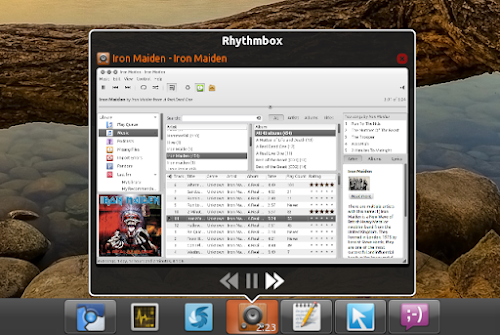
DockBarX, an amazing Gnome panel / Avant Window Navigator taskmanager applet was updated to version 0.43 today, this new release bringing media buttons for all music players that show up in the Ubuntu Sound menu and DockManager support which means that you can use the Docky helpers in DockBarX.

To enable the Helpers, in DockBarX Preference (Applications > Accessories), on the "Plugins" tab, enable "Use DockManager", then click on "Helpers" and enable some plugins. The media buttons are enabled by default but if you want to turn them off, uncheck "Use media buttons" on the Plugins tab.

DockBarX helpers


Other changes in DockBarX 0.43:
  • Prism applications are separated from each other instead of being grouped together now.
  • Small visual changes to window list and group menu. The look when using DockbarX without compositing is imporved a bit.
  • DockbarX uses its own log now. When reporting bugs, include the file ~/.dockbarx/log/dockbarx.log (or any other of the numbered log files in that directory depending on how many times you restarted dockbarx since the bug last occurred)

Here are some more screenshots featuring the latest DockBarX 0.43 used both with Avant Window Navigator and a regular Gnome panel:

DockBarX rhythmbox controls

DockBarX pidgin helper

DockBarX gnome panel

DockBarX gnome panel screenshot


Install DockBarX 0.43 in Ubuntu from the WebUpd8 PPA

DockBarX 0.43 is not yet available in the official DockBar PPA, but as usual we've uploaded the latest version to the WebUpd8 PPA (for Ubuntu Karmic, Lucid, Maverick and Natty). Add the WebUpd8 PPA and install DockBarX 0.43 using the following commands:
sudo add-apt-repository ppa:nilarimogard/webupd8
sudo apt-get update
sudo apt-get install dockbarx dockbarx-themes-extra
The above command will install both DockBarX and an extra themes package. If you want even more themes (and you use Avant Window Navigator / Faenza icons), see: DockBarX Theme Pack For Avant Window Navigator / Faenza Users.

To be able to use the Helpers, you also need to install the following packages:
sudo apt-get install dockmanager dockmanager-daemon libdesktop-agnostic-cfg-gconf libdesktop-agnostic-vfs-gio

For Zeitgeist support, add the Zeitgeist PPA and upgrade to the latest Zeitgeist:
sudo add-apt-repository ppa:zeitgeist/ppa
sudo apt-get update
sudo apt-get dist-upgrade

And finally, if you want to use DockBarX in Avant Window Navigator, you need to install the AWN DockBarX applet:
sudo apt-get install awn-applet-dockbarx


Tip: to be able to use the Window Previews feature, firstly enable it from DockBarX (Applications > Accessories > DockBarX Preference, on the Window List tab enable "Show previews") and then in CompizConfig Settings Manager make sure the "KDE Compatibility" plugin is enabled and that both options for this plugin (Support Plasma Thumbnails and Support Present Windows) are enabled.


If you're not using Ubuntu, you can download the latest DockBarX 0.43 via Gnome Look.

Report any bugs you may encounter @ Launchpad!

DockBarX 0.42 Brings Improved Window Previews

DockBarX 0.42

After the great new features it got two weeks ago, a new DockBarX version (0.42) has been released today, bringing some tweaks and improvements to those new features:
  • It's now possible to scroll through windows (by using mouse or keyboard shortcuts) without raising all of them.
  • Opacify now fades in and out.
  • If the previews takes up too much space to fit the screen, a list without previews will be shown instead.
  • The size of previews are now set in such a way that the window is shrunk until it fits a in box with the same size aspect ratio as the monitor (the size you set from preference window is the height of this box). Previously it was fitted into a square (size*size). This makes the height of the previews more even.
  • Vertical panels now stacks the previews vertically. The placement of the window list is set according to the golden ratio instead of aligning the top of the button and the window list.
  • For those of you who doesn't like the new menu: The old gtk menu is back and you can choose to use it from preference window.

Install DockBarX 0.42 in Ubuntu

DockBarX 0.42 is of course available in the WebUpd8 PPA for Karmic, Lucid, Maverick and Natty. Add the PPA and install DockBarX 0.42 using the following commands:

sudo add-apt-repository ppa:nilarimogard/webupd8
sudo apt-get update
sudo apt-get install dockbarx dockbarx-themes-extra

The last command above will install both DockBarX and the extra DockBarX themes pack. To also install the Avant Window Navigator DockBarX applet, use the following command:


sudo apt-get install awn-applet-dockbarx


If you're not using Ubuntu, download DockBarX via Gnome Look.

DockBarX Theme Pack For Avant Window Navigator / Faenza Users

DockBarX big dock

"DBX big dock" pack is a DockBarX theme package especially created for those that use DockBarX with Avant Window Navigator and comes with updated "Unite" themes (Unite_v and Unite_h) with new blink attenton effects as well as versions for these themes without backgrounds and bigger icons for Faenza icon theme users (the themes are called Faenza_Unite_v and Faenza_Unite_h). The pack also includes a mod of the DockBarX "dock" theme with nice colors and attention effects.

All the themes in the "DBX big dock" come with 2 versions: for horizontal and vertical dock.

DockBarX faenza
(DockBarX Faenza_Unite_H)


Installation

Download the "DBX big dock" pack from Gnome Look and extract it on your desktop, then run the following commands:
cd ~/Desktop/136409-Dock-pack/themes
sudo cp * /usr/share/dockbarx/themes/

Then, open the DockBarX preferences (Applications > Accessories) and try out the new themes!


See also: DockBarX 0.41 installation instructions (including extra themes and AWN applet)

Cardapio Gets An Avant Window Navigator Applet

Avant Window Navigator Cardapio

Cardapio is a simple menu for the GNOME desktop that comes with a lot of useful plugins. It can launch applications, run a command, pin items, search through your Firefox bookmarks or Ubuntu Software Center, includes a file search and full text search and more.

After getting a Docky helper two weeks ago, an update today brings a Cardapio Avant Window Navigator applet too so you can finally use Cardapio like any other AWN applet (it was previously possible to use Cardapio in AWN by using a small "hack").

Install Cardapio Avant Window Navigator applet:

sudo add-apt-repository ppa:cardapio-team/unstable
sudo apt-get update
sudo apt-get install cardapio cardapio-awn

If you've already had Cardapio installed, make sure to upgrade to the latest version before installing the AWN applet.


Thanks to Thiago for the tip!

Avant Window Navigator Gets Live Window Previews

Avant Window Navigator live window previews

You could already get live window previews in Avant Window Navigator thanks to DockBarX, bu the latest Avant Window Navigator from the AWN Trunk PPA got window previews for the AWN taskmanager so it's no longer required to install additional packages to get this feature in AWN.

The live window previews feature in Avant Window Navigator doesn't work like in DockBarX: you need to click and hold for the previews to show up. Also, the previews are kind of rough for the moment: there is no option to change their size and the "Launch" button is quite big, but hopefully some customization for the window previews will come soon.


Here is a video recorded by Moonbeam (AWN developer):


To get live window previews in AWN, you need to install the latest AWN from the AWN trunk PPA. See the instructions below for this and enabling window previews!


Install Avant Window Navigator from AWN PPA


1. Firstly, make sure you remove Avant Window Navigator and all its packages if you are using the stable 0.4.0 version and not the 0.4.1 trunk version:
sudo apt-get remove avant-window-navigator avant-window-navigator-data awn-settings awn-applets-c-core libawn1 vala-awn && sudo apt-get autoremove


2. Add the AWN PPA
sudo add-apt-repository ppa:awn-testing/ppa
sudo apt-get update


3. Install AWN-trunk
sudo apt-get install avant-window-navigator-trunk avant-window-navigator-data-trunk python-awn-trunk awn-settings-trunk awn-applets-python-core-trunk python-awn-extras-trunk awn-applets-python-extras-trunk awn-applets-c-core-trunk awn-applets-c-extras-trunk


Enable live window previews in Avant Window Navigator

1. To get live window previews, firstly make sure you have CCSM installed:
sudo apt-get install compizconfig-settings-manager

Then go to System > Preferences > CompizConfig Settings Manager and enable the "KDE Compatibility" plugin (yes, even if you don't use KDE).

2. Now we need to enable the window previews in AWN. Open a terminal and copy/paste this:
gconftool-2 --set /apps/awn-applet-taskmanager/dialog_mode --type int 2

If you want to disable the window previews, use "1" instead of "2" in the command above.

3. And finally, in the AWN Preferences, go to the Task Manager tab and check the "Show dialog after long press" option.


Now whenever you click and hold ("long press") an icon in the Avant Window Navigator taskmanager, you should see live window previews.


For an alternative AWN taskmanager which also comes with live window previews but which can be customized, see DockBarX.


[news via moon-shiny]

Change Avant Window Navigator Applets Icon By Using Drag-and-Drop [Quick AWN Tip]

AWN change applet icon

Here's a quick AWN tip which I for one didn't know of: Avant Window Navigator lets you change the icon for an applet by simply dragging and dropping an icon onto the applet. This only works with single-icon applets (like YAML, File Browser Launcher, Show Desktop and so on).

To reset it, simply remove the applet from the dock and then re-add it.


Thanks to Mahdi for the tip!

DockBarX 0.41 Released With Redesigned Window Previews And Menu (Looks Amazing!)

DockBarX 0.41 has just been released, featuring redesigned window previews and menu as well as a close button for the window previews. Before more info on the latest DockBarX, here are some screenshots:

DockBarX 0.41 running in Avant Window Navigator
(DockBarX 0.41 running in Avant Window Navigator)

DockBarX 0.41 - Gnome Panel applet
(DockBarX 0.41 - Gnome Panel applet)

DockBarX 0.41 running in Avant Window Navigator
(DockBarX 0.41 running in Avant Window Navigator - recent items menu)


Matias Särs, the DockBarX developer notes:

In DockbarX 0.41 the looks of the window list and the group button menu change quite a bit. The reason for these changes is the changes that other parts of the linux desktop is going through. Previous versions of DockbarX were made to blend in with gnome 2 and ubuntu notifications. DockbarX 0.41 is made to look more like Untiy, gnome-shell and docks. The new look is also a result of the positive response BigRZA's mockup got a few months back. As you can see for yourselves I've followed it quite closely.


Install DockBarX 0.41 in Ubuntu

The DockBarX repository has not been updated yet, so as usual I've uploaded it to the WebUpd8 PPA (using the original packaging by T. Scott Barnes so many thanks to him!). To add the WebUpd8 PPA and install the latest DockBarX in Ubuntu Karmic, Lucid, Maverick and Natty, use the following commands:
sudo add-apt-repository ppa:nilarimogard/webupd8
sudo apt-get update
sudo apt-get install dockbarx dockbarx-themes-extra

To also install the Avant Window Navigator DockBarX applet:
sudo apt-get install awn-applet-dockbarx


Important: to use the window previews, you need CompizConfig Settings Manager (sudo apt-get install compizconfig-settings-manager) and then check the "KDE Compatibility" plugin in CCSM (System > Preferences > CompizConfig Settings Manager) - yes, even in GNOME. Once you enable this plugin, in DockBarX preferences (Applications > Accessories > DockBarX Preference), on the "Window List" tab, enable "Show Previews".

If you also want blur for the window previews and menu items, in CompizConfig Settings Manager enable the "Blur Windows" plugin, then on its settings, under "Blur filter" select "Gaussian". You can also want to tweak the "Gaussian Radius" or "Gaussian Strength" a bit (to whatever values you like).

Use MintMenu In Avant Window Navigator [AWN Applet]

MintMenu Avant Window Navigator

Avant Window Navigator already has some menu applets, but none as good as MintMenu.

But now you can use MintMenu in AWN, thanks to Neelance who maintains a PPA for MintMenu AWN applet which you can install (Ubuntu Lucid and Maverick; should work in Linux Mint) using the following commands:
sudo add-apt-repository ppa:neelance/awn
sudo apt-get update
sudo apt-get install awn-mintmenu

You'll also need the regular MintMenu installed (<-- click for installation instructions) to be able to use this!

Then add the MintMenu applet to AWN. If it takes too long for the menu to load, quit AWN and start it again (this is a known issue that occurs sometimes as noted in the PPA description).


A big thanks to Kevin McDole for sending us the tip!

DockBarX 0.40 Has Been Released

DockBarX

DockBarX 0.40 has been released last night, bringing the following changes:
  • The default theme has changed. The new default theme DBX is made by BigRZA. It's made to look good with Radiance and Ambiance. (The old default theme is still included under the name Old.)
  • Another theme by BigRZA, Sunny Colors is also included by default
  • The theme Human bar is removed since it was pretty much an older version of the new default theme.
  • Number of entries in recent and most used menus are increased to eight (for real this time).
  • A few new languages and updates to translations.


Dockbarx 0.40 new default theme
(The new default theme in DockBarX 0.40)


For those who are not familiar with DockBarX: it's a taskbar with grouping and group manipulation which works as an applet for both the GNOME Panel (see the images above) and Avant Window Navigator (image below):

DockBarX Avant Window Navigator


As usual, I've uploaded the latest DockBarX 0.40 in the WebUpd8 PPA, along with an updated extra themes package (it's required to upgrade to the latest dockbarx-themes-extra version if you've ever installed it or else you'll get an error when installing DockBarX) and the AWN applet. With this update, I've also uploaded packages for Ubuntu 11.04 Natty Narwhal (for all the DockBarX related packages).

To add the WebUpd8 PPA and install DockBarX and the extra themes, use the following commands:
sudo add-apt-repository ppa:nilarimogard/webupd8
sudo apt-get update
sudo apt-get install dockbarx dockbarx-themes-extra

To also install the Avant Window Navigator applet:
sudo apt-get install awn-applet-dockbarx

Avant Window Navigator Gets Per Dock Intellihide

AWN lucido

An update to the Avant Window Navigator trunk PPA from a few days ago brought per dock/panel Intellihide to AWN (taskmanager).

Intellihide causes the dock to autohide itself when a window is obscuring it/maximized and be visible while nothing is in the way. This means you can utilize all of your available screen space when you need it and not have to mouse to the screen edge when you don't need all of the screen space.

Here is a screencast recorded by the AWN main developer, Moonbeam:


This feature, as well as multiple docks, helpers, AWN Lucido style and so on are only available in the latest AWN 0.4.1 trunk from the AWN PPA so to install it, you must follow the steps below:

1. Firstly, make sure you remove Avant Window Navigator and all its packages if you are using the stable 0.4.0 version and not the 0.4.1 trunk version:
sudo apt-get remove avant-window-navigator avant-window-navigator-data awn-settings awn-applets-c-core libawn1 vala-awn && sudo apt-get autoremove

2. Add the AWN trunk PPA:
sudo add-apt-repository ppa:awn-testing/ppa && sudo apt-get update

3. Install Avant Window Navigator trunk:
sudo apt-get install avant-window-navigator-trunk avant-window-navigator-data-trunk python-awn-trunk awn-settings-trunk awn-applets-python-core-trunk python-awn-extras-trunk awn-applets-python-extras-trunk awn-applets-c-core-trunk awn-applets-c-extras-trunk dockmanager-daemon dockmanager


The update that brought the per dock/panel Intellihide feature in Avant Window Navigator caused an installation error due to a file being moved to a new AWN package. To fix this (if you were already using the AWN PPA), use the following command:
sudo apt-get install -f


See also: How to customize AWN Lucido style (video).


Avant Window Navigator for Ubuntu Linux

Avant Window Navigator (AWN) is a Mac OS X like panel for the GNOME Desktop. In addition to launchers that can be dragged onto the bar, it features a taskbar that behaves similarly to the Mac OS X dock. The window navigator uses the composite extension for transparency and other effects.

Avant Window Navigator

The latest version of Avant Window Navigator - as of this writing - is version 0.4.

Read more »
 
Support By Blogger