Volutions - ID | News | Gadget | Tutorial | Freeware | Template | Etc.: gnome panel
Showing posts with label gnome panel. Show all posts

Recent Notifications Applet Can Now Blacklist Applications

Recent Notifications applet

Recent Notifications is a GNOME applet that collects recent messages sent with libnotifiy to a notification daemon, such as notify-osd.

Just one day after we wrote about the Recent Notifications applet, it got a cool new feature but we never got to write about it because of the many news that came up this week.

The feature I'm talking about is an option to blacklist applications within the applet. For example if you get a lot of notifications in Pidgin, simply right click a Pidgin notification in Recent Notifications and select "Blacklist Pidgin" - the same goes for any application. If you want to remove an application from the blacklist, right click the Recent Notifications applet and uncheck the app you want to remove from the "Blacklist" tab:

Recent notifications applet

But that's not all; the applet got no less then 8 updates since our post last week. Most of them were bug fixes, but there are also a few other minor features that were introduced, like debug messages or set the message limit.

If you didn't try Recent Notifications applet already, you really should! Add the Recent Notifications PPA and install the applet in Ubuntu using the following commands:
sudo add-apt-repository ppa:jconti/recent-notifications
sudo apt-get update
sudo apt-get install recent-notifications

Never Miss A NotifyOSD Notification With "Recent Notifications" GNOME Applet

Don't you wish you could see the recent NotifyOSD notifications? I know I would - for instance I use a nifty application called Android Notifier that displays NotifyOSD notifications on my computer when I get a new SMS or call on my Phone, but if I'm doing something else when that happens and I miss the notification, there's no way to see it on my computer. And that's just an example, there are many other applications which display NotifyOSD notifications that you might like to see later on in case you've missed the actual notification (like some Twitter clients, etc.).


Recent Notifications Applet


Recent Notifications applet

Well, that's what the Recent Notifications applet was created for: it displays the recemt NotifyOSD notifications. The applet is very simple and doesn't come with tons of features but does its job very well: its icon turns green when you have some unread notifications, you can sort the notifications by application, copy text or link from a notification (useful at times) and that's about it. Simple, easy to use yet so useful!


Here's another screenshot - Recent Notifications lets you copy the text or link from a notification as well as directly visit the link:

Recent notifications copy link


Something like this should really be default in Ubuntu!


Install the Recent Notifications applet in Ubuntu


Recent Notifications applet comes with a PPA for Ubuntu Karmic, Lucid and Maverick. Add the PPA and install Recent Notifications using the following commands:
sudo add-apt-repository ppa:jconti/recent-notifications
sudo apt-get update
sudo apt-get install recent-notifications

Once installed, right click a GNOME panel, select "Add to panel" and add "Recent Notifications".

DockBarX Applet 0.43 Released With Helpers, Media Buttons [PPA]

DockBarX 0.43

DockBarX, an amazing Gnome panel / Avant Window Navigator taskmanager applet was updated to version 0.43 today, this new release bringing media buttons for all music players that show up in the Ubuntu Sound menu and DockManager support which means that you can use the Docky helpers in DockBarX.

To enable the Helpers, in DockBarX Preference (Applications > Accessories), on the "Plugins" tab, enable "Use DockManager", then click on "Helpers" and enable some plugins. The media buttons are enabled by default but if you want to turn them off, uncheck "Use media buttons" on the Plugins tab.

DockBarX helpers


Other changes in DockBarX 0.43:
  • Prism applications are separated from each other instead of being grouped together now.
  • Small visual changes to window list and group menu. The look when using DockbarX without compositing is imporved a bit.
  • DockbarX uses its own log now. When reporting bugs, include the file ~/.dockbarx/log/dockbarx.log (or any other of the numbered log files in that directory depending on how many times you restarted dockbarx since the bug last occurred)

Here are some more screenshots featuring the latest DockBarX 0.43 used both with Avant Window Navigator and a regular Gnome panel:

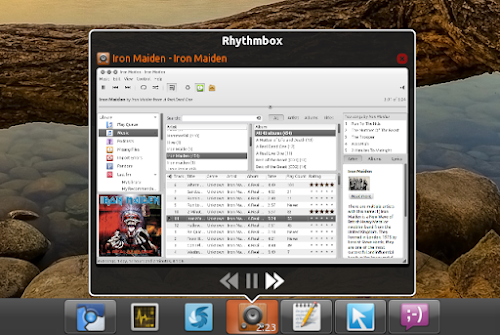
DockBarX rhythmbox controls

DockBarX pidgin helper

DockBarX gnome panel

DockBarX gnome panel screenshot


Install DockBarX 0.43 in Ubuntu from the WebUpd8 PPA

DockBarX 0.43 is not yet available in the official DockBar PPA, but as usual we've uploaded the latest version to the WebUpd8 PPA (for Ubuntu Karmic, Lucid, Maverick and Natty). Add the WebUpd8 PPA and install DockBarX 0.43 using the following commands:
sudo add-apt-repository ppa:nilarimogard/webupd8
sudo apt-get update
sudo apt-get install dockbarx dockbarx-themes-extra
The above command will install both DockBarX and an extra themes package. If you want even more themes (and you use Avant Window Navigator / Faenza icons), see: DockBarX Theme Pack For Avant Window Navigator / Faenza Users.

To be able to use the Helpers, you also need to install the following packages:
sudo apt-get install dockmanager dockmanager-daemon libdesktop-agnostic-cfg-gconf libdesktop-agnostic-vfs-gio

For Zeitgeist support, add the Zeitgeist PPA and upgrade to the latest Zeitgeist:
sudo add-apt-repository ppa:zeitgeist/ppa
sudo apt-get update
sudo apt-get dist-upgrade

And finally, if you want to use DockBarX in Avant Window Navigator, you need to install the AWN DockBarX applet:
sudo apt-get install awn-applet-dockbarx


Tip: to be able to use the Window Previews feature, firstly enable it from DockBarX (Applications > Accessories > DockBarX Preference, on the Window List tab enable "Show previews") and then in CompizConfig Settings Manager make sure the "KDE Compatibility" plugin is enabled and that both options for this plugin (Support Plasma Thumbnails and Support Present Windows) are enabled.


If you're not using Ubuntu, you can download the latest DockBarX 0.43 via Gnome Look.

Report any bugs you may encounter @ Launchpad!

Window Applets 0.2.10, Released

Gnome Window Applets

Window Applets is a package that comes with two Gnome panel applets: Window Title and Window Buttons which are basically controls for windows that are placed on the Panel instead of the window. They provide a clever way to increase vertical screen space.


New features / changes in Window Applets 0.2.10:
  • Disabled applet hiding by default (it was causing confusion with new users)
  • Added option to override button orientation (automatic/default, horizontal and vertical)
  • Added option to reverse button order
  • Updated themes: Ambiance-Maverick, Radiance-Maverick (thank you Cierreics)
  • Saturate title icon and darken text on inactive
  • Select a more apropriate non-custom title text color
  • Added options to set both active and inactive font/color
  • Added experimental option to show window action menu on title right click. Warning: Overrides applet menu over title.


To install Window Applets 0.2.10 in Ubuntu, you can use the WebUpd8 PPA:
sudo add-apt-repository ppa:nilarimogard/webupd8
sudo apt-get update
sudo apt-get install gnome-window-applets

Then, right click the Gnome Panel, select "Add to panel" and add "Window Title" and "Window Buttons".

Jupiter 0.0.46 Released With SATA Link Power Management And USB Autosuspend Support

Jupiter 0.0.46

Jupiter is a Gnome applet you can use on your netbook or laptop to switch between maximum, high performance and power saving mode, change the resolution and orientation of the screen, enable or disable the bluetooth, touchpad, WiFi. Jupiter also comes with Eeepc SHE (Super Hybrid Engine) support.

Jupiter 0.0.46 was released today with device power management (for devices that support it such as PCI devices, etc.), SATA Link power management and USB Autosuspend support. For info about these as well as other tips and tricks to use less power on your netbook / laptop, see LessWatts.org.


As usual, the latest Jupiter version is available in the Jupiter WebUpd8 PPA:
sudo add-apt-repository ppa:webupd8team/jupiter
sudo apt-get update
sudo apt-get install jupiter

If you own an Asus Eeepc, also install jupiter-support-eee to get SHE support:
sudo apt-get install jupiter-support-eee


Jupiter is included by default in Fuduntu, a Fedora 14 remix made by Fewt, the Jupiter developer. It is also installed by default in Aurora, ex-Eeebuntu (actually, Jupiter was especially designed for Eeebuntu).


If you don't want to use our Jupiter PPA or don't use Ubuntu, download Jupiter from Sourceforge.

Get Your Favourite Gnome Panel Applets And ALT + F2 Run Dialog Back In Ubuntu 11.04 (Unity)

Ubuntu 11.04 gnome panel applets

As you probably know, the Ubuntu 11.04 panel doesn't let you add applets - it's not that panel is locked like it was in Ubuntu 10.04 Netbook Edition, it simply doesn't support applets (it doesn't have such a feature) as the top Unity panel is not a Gnome panel.

However, if you have a Gnome panel applet that you just can live without (like CPU Frequency Scaling Monitor which you can see in my screenshot or Jupiter which is a must for a netbook), you can use a simple "hack" to use it: simply open a terminal and type:
gnome-panel

If you want it to start each time your computer boots, simply add it to your Startup Applications.

This should make both the top and bottom Gnome panels show up - you can delete one of them and/or move them wherever you want (top, bottom, right) and further tweak them so they don't interfere with the way Unity looks/behaves.

In my screenshot I've only kept the top panel which is set to autohide and "Expand" is unchecked. That means that my panel (which only holds one applet) will automatically hide and it will only take a few pixels of the top Unity panel when I need it.

Using a Gnome panel also means you'll get the ALT + F2 Run dialog back (nothing happens when you press ALT + F2 in the default Unity setup).


Idea thanks to garvinrick4 @ Ubuntuforums.

Window Applets 0.2.9 Finally Gets Emerald Support, Comes With 4 New Themes

Window applets


Window Applets are 2 Gnome panel applets that display the window tile and buttons.

Because we got a lot of comments from people not understanding what Window Applets does, here's a short description (and a new screenshot - hopefully it's clear now): 

You can set Window applets to control only maximized windows (but Window Applets can control non-maximized windows too) and remove the maximized windows titlebar, thus gaining some extra vertical space, but still see the window title and control the windows using the Window Applets. Ubuntu 10.10 Netbook edition has something similar by default, but what's so great about Window Applets is that the Window Title and Window Buttons are 2 separate applets so you can place each wherever you want (like for instance: the Window Title in the middle of the panel and Window Buttons on the right, after the Session Indicator applet). 

Also, unlike the Ubuntu 10.10 Netbook Edition applet, "Window Applets" supports themes for the buttons on the panel - and comes with a lot of themes by default, as well as many other customizations.


Window Applets 0.2.9

Window Applets 0.2.9 was released yesterday, adding 4 new themes: Blubuntu, Equinox Glass, Plano and New Hope. Also, starting with the latest version, Emerald is finally working with Window Applets.


Here are the complete Window Applets 0.2.9 release notes:
  • Major code cleanups, rearangements and optimizations
  • Added plaintext settings backend (enable by setting PLAINTEXT_CONFIG to 1)
  • Fixed desktop detection (+ got rid of potential segfaults)
  • Bugfix: hide_on_unmaximized causes buttons to not reappear if disabled when currentwindow not present
  • Changed theme model from 16 to 24 images (added 2 new unfocused states) and made it backwards compatible
  • Fixed Compiz detection for maximized windows. Coincidentally this also makes Emerald work
  • Added new themes: Blubuntu, Equinox-Glass, Plano, New-Hope
  • Bugfix: Ensure the title gets truncated if it runs out of space
  • Forced the Expand option due to GTK+ bugs. It can be disabled in gconf-editor, but then you should also set a fixed title_size
  • Bugfix: Icon padding wrong on different panel orientations


Install Window Applets 0.2.9 in Ubuntu

I've been waiting for T. Scott Barnes's Misc PPA to get an update with the latest Window Applets but unfortunately the update didn't came (yet) so I've uploaded the latest Window Applets 0.2.9 in the WebUpd8 PPA.

To add the WebUpd8 PPA and install Window Applets 0.2.9 (available for Ubuntu 10.04 and 10.10), use the following commands:
sudo add-apt-repository ppa:nilarimogard/webupd8
sudo apt-get update
sudo apt-get install gnome-window-applets

Then, right click the Gnome Panel, select "Add to panel" and add "Window Title" and "Window Buttons". The applets are set to only be displayed for maximized windows so for chaging their settings, maximize a window so you can actually see the applets, then right click each of the two applets and select "Prefereces", then set everything to suit your needs.

If the Window Buttons applet doesn't show up on the panel after the installation even when maximizing a window, run the following command:
killall gnome-panel

And it should then work.


For other Linux distributions, see Window Applets page @ Gnome Look.


Thanks to Hadret for the debianization! You can install Window Applets in Debian by using Hadret's repository.

DockBarX 0.40 Has Been Released

DockBarX

DockBarX 0.40 has been released last night, bringing the following changes:
  • The default theme has changed. The new default theme DBX is made by BigRZA. It's made to look good with Radiance and Ambiance. (The old default theme is still included under the name Old.)
  • Another theme by BigRZA, Sunny Colors is also included by default
  • The theme Human bar is removed since it was pretty much an older version of the new default theme.
  • Number of entries in recent and most used menus are increased to eight (for real this time).
  • A few new languages and updates to translations.


Dockbarx 0.40 new default theme
(The new default theme in DockBarX 0.40)


For those who are not familiar with DockBarX: it's a taskbar with grouping and group manipulation which works as an applet for both the GNOME Panel (see the images above) and Avant Window Navigator (image below):

DockBarX Avant Window Navigator


As usual, I've uploaded the latest DockBarX 0.40 in the WebUpd8 PPA, along with an updated extra themes package (it's required to upgrade to the latest dockbarx-themes-extra version if you've ever installed it or else you'll get an error when installing DockBarX) and the AWN applet. With this update, I've also uploaded packages for Ubuntu 11.04 Natty Narwhal (for all the DockBarX related packages).

To add the WebUpd8 PPA and install DockBarX and the extra themes, use the following commands:
sudo add-apt-repository ppa:nilarimogard/webupd8
sudo apt-get update
sudo apt-get install dockbarx dockbarx-themes-extra

To also install the Avant Window Navigator applet:
sudo apt-get install awn-applet-dockbarx

Install Gnome2 Globalmenu In Ubuntu 10.10 Maverick Meerkat

Gnome2 Globalmenu

Having so many posts on "global menus", you probably know by now what a "global menu" is. If not, take a look at the above screenshot.

Ubuntu 10.10 Netbook Edition comes with a global menu (not Gnome2 Globalmenu but its own "global menu") which works with some Qt applications as opposed to Gnome2 Globalmenu, however Gnome2 Globalmenu is still better for GTK applications (for now anyway) as it allows far more customizations then the Ubuntu global menu. But this is not a post on pros and cons for these 2 applications but about installing Gnome2 Global menu in Ubuntu 10.10 Maverick Meerkat.

You could already install Gnome2 Globalmenu in Ubuntu 10.10 but you had to manually download and install 4-5 .deb files which is not exactly user friendly. Besides, a new version was released a couple of days ago and it's not available in the Gnome2 Globalmenu PPA - reason for which I've decided to upload this new version (0.7.10 - unfortunately I didn't find any changelog for this version and also I don't see any visible new features) to the WebUpd8 PPA.

Install Gnome2 Globalmenu in Ubuntu 10.10 Maverick Meerkat

Before installing, please note that the latest version - 0.7.10 -, does not come with XFCE packages anymore (that's because of the Gnome2 Globalmenu, not due to my packaging).

Important: I've experienced some issues with the Linux Mint 10 default theme (Mint-X theme) so if you want to use this theme, it's better not to install/upgrade to the latest Gnome2 Globalmenu! However, all the other themes I've tried worked!

1. Add the WebUpd8 PPA and install the latest Gnome2 Globalmenu, use the following commands:
sudo add-apt-repository ppa:nilarimogard/webupd8
sudo apt-get update
sudo apt-get install gnome-globalmenu

Or use Y PPA Manager to add the PPA :)

2. Restart the computer. Do not just log out - that won't work. And finally, right click the Gnome Panel, select "Add to panel" and add "Global Menu Panel Applet".


For older Ubuntu versions, you can use the Gnome2 Globalmenu PPA.

Panflute: Control Your Favourite Music Player From The Gnome Panel

Panflute

Your favourite music player is not supported by the new Ubuntu 10.10 sound menu or not using Ubuntu 10.10 Maverick Meerkat yet? Then try Panflute, a gnome Panel applet and daemon which can control whatever music player is currently running. It can play/pause/stop, display/rate songs, display artist/song title, song change notifications and more. Each of these can be removed from Panflute so you can show only the song info or controls that you want.

The latest Panflute 0.7 adds support for music players such as Clementine, Decibel, Pithos, and Qmmp along the already supported Amarok, Rhythmbox, Guayadeque, Audacious, Banshee, Exaile, Listen, MOC, Muine, Quod Libet, Songbird and VLC.

Panflute 0.7 also comes with an option to control the player volume, seek using the mouse scroll wheel on the time display and more.


To install the latest Panflute 0.7 in Ubuntu Karmic, Lucid or Maverick (from the official Panflute PPA), use the following commands:
sudo add-apt-repository ppa:kuliniew/ppa
sudo apt-get update
sudo apt-get install panflute-applet


Then right click the Gnome Panel, select "Add to panel" and add Panflute.


[Thanks to LFFL!]
 
Support By Blogger